

A gift card PIN is your four-digit security password that protects your funds and works alongside your 15-digit card number. Think of it like a bodyguard for your money—it’s what you need to redeem cards online or check your balance. You’ll find it scratched off on physical cards’ backs, or in your email for eGift cards. Not every card requires one, though some older certificates skip it entirely. Want to know where yours is hiding and how to use it?
What Does a Gift Card PIN Do?
Ever wondered why your gift card has a hidden four-digit number tucked away on the back? That’s your PIN number, and it’s your gift card’s security layer. You’ll need this four-digit code alongside your 15-digit card number to redeem your balance online or check how much you’ve got left to spend. Think of it like a password that protects your money. For physical cards, you’ll scratch off that little coating to reveal your PIN number, while eGift cards deliver theirs through email. Not every card requires one—some older gift certificates and specific card numbers get a free pass—but most modern cards have this security feature. It’s an effective way to keep your balance safe from unauthorized access.
Does Your Card Actually Need a PIN?
While we’ve covered why PINs matter for security, the point is—not every gift card actually requires one. Some gift cards skip the PIN requirement entirely. If your card number starts with 349, you’re in luck; you don’t need a PIN to redeem it. Older gift certificates issued before October 2003? They’re PIN-free too. Virtual Visa and Mastercard gift cards work well without PINs for most transactions. However, physical Barnes & Noble cards demand that 4-digit PIN alongside your 15-digit card number for online redemption or balance checks. eGift cards always need both the card number and PIN from your service email. The takeaway? Check your specific card’s requirements before assuming you’ll need that PIN scratched off the back.
Revealing Your PIN: Physical Gift Cards
Your physical Barnes & Noble gift card has a silver scratch-off coating on the back that’s hiding your PIN, and you’ll find it sitting right next to a sticker. To reveal that number, you’ll want to scratch off the coating carefully—think gentle persuasion rather than aggressive peeling—since the coating’s basically just protecting your code from prying eyes. Once you’ve scratched away that silver layer, your PIN appears, ready to team up with your 15-digit card number for online redemption and balance checking.
Locating The Silver Coating
The silver scratch-off coating on the back of your gift card is located on the back surface. This section explains where to find it and what to look for.
| Location | Position | What You’ll See | Why It Matters |
|---|---|---|---|
| Back of card | Next to card number | Silver metallic coating | Protects your PIN |
| Near bottom right | Lower section | Slightly raised surface | Easy to identify |
| Above or beside digits | Alongside 15-digit number | Shiny appearance | Distinguishes itself |
| Secured area | Protected zone | Reflective material | Safety feature |
The coating sits right there on the back surface. You’ll spot it easily because it’s shiny and different from the card’s regular surface. This barrier keeps your PIN protected until you’re ready to use it. Scratch it carefully—don’t peel—and your PIN appears.
Scratching Off Protection
Once you’ve found that shiny silver coating on the back of your card, it’s time to reveal what’s hiding underneath. I’d recommend being gentle with this part because scratching carefully is important. Here’s what you need to know:
- Use a coin or your fingernail to scratch gently across the coating
- Avoid peeling the coating away, which can damage the PIN underneath
- Scratch until the hidden numbers become visible
The PIN that appears is your key to redeeming your card online and checking your balance. Think of it as the secret handshake between you and your gift card. Take your time with this step, and you’ll have smooth sailing ahead when you’re ready to use your card.
Finding Your PIN in Virtual Card Emails
Where do you find that all-important PIN for a Barnes & Noble eGift Card? Look no further than your email inbox. When someone sends you an eGift Card, the service email contains everything you need. The PIN appears right above the eGift Card number, so you won’t miss it. Both the PIN on a gift card and the card number travel together in that same message, making redemption straightforward.
Here’s the benefit: you’ll need this PIN to redeem your card online or check your balance. It’s your digital security measure, protecting your funds and limiting access to you. Don’t lose that email—take a screenshot or write down both numbers somewhere safe. Having both pieces of information keeps you in control of your gift card experience.
Access Your Gift Card PIN via One4all App or Website
I’ve got two ways to access your One4all PIN. You can use the One4all App by tapping the eye icon at the bottom left, authenticating with your fingerprint or passcode, and viewing your 4-digit PIN for about 5 seconds before it disappears. If you prefer the website, log in, go to My Gift Cards, select Chip & PIN, find your card at the bottom, and click View PIN. Note that the website limits you to viewing 5 PINs every 15 minutes and requires a text authorization code.
One4all App Access Method
How’d you like to see your gift card PIN in just a few taps?
I’ll walk you through the One4all App method, which is straightforward. First, you’ll need your online account credentials and that authorization code texted to your phone. Once you’re logged in, here’s what happens next:
- Tap the eye icon at the bottom left of your card display
- Authenticate yourself using your phone’s passcode or biometrics
- Watch your gift card PIN appear for exactly 5 seconds before it vanishes
That temporary visibility is intentional—it’s keeping your information secure while still giving you access. The app limits you to viewing up to 5 PINs every 15 minutes, so you’ve got flexibility without overdoing it. The app supports your needs.
Online Website PIN Retrieval
If you’d rather skip the app and go straight to your computer, the One4all website provides another way to find your PIN. Just head to www.one4all.com and log in with your credentials. From there, navigate to My gift cards, then select Chip & PIN. You’ll need to verify your identity with an authorization code sent by text—think of it as a security handshake. Once you’ve confirmed, your PIN appears right next to your desired card. Here’s the catch: the PIN displays only briefly before vanishing, so jot it down quickly. You can peek at up to five PINs every 15 minutes, which keeps things secure without being inconvenient. It’s basically the same access you’d get on the app, just from your computer instead.
When and Where to Use Your PIN
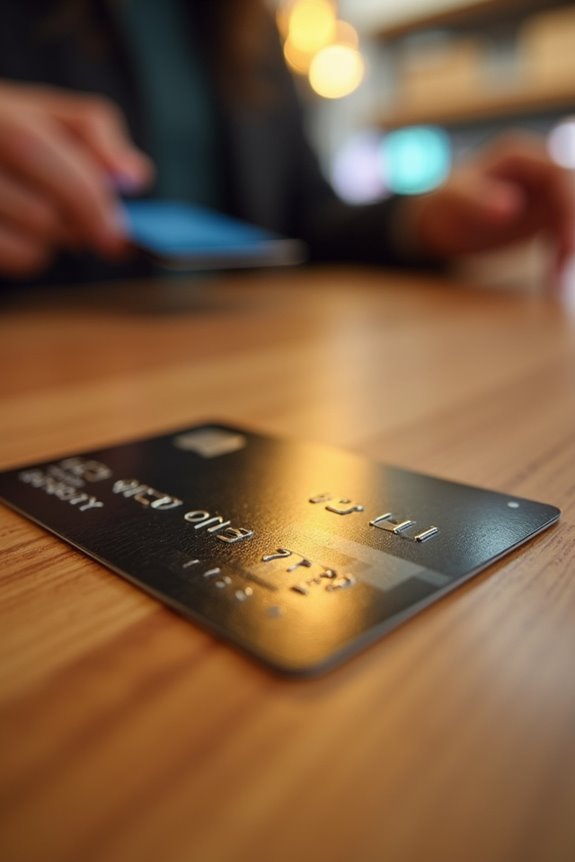
So when exactly do you need to pull out that four-digit number hiding under the scratch-off coating? Here’s the breakdown:
- In-store debit transactions – You’ll need your PIN when you’re paying like it’s a debit card at Barnes & Noble checkout.
- Online checkout prompts – Some websites ask for your PIN, which signals they’re set up to accept gift cards.
- Specific card numbers – If your card starts with 349, you won’t need a PIN for redemption.
Your PIN isn’t some mysterious code. It’s right there on your physical card’s back, waiting under that scratch-off layer. For eGift cards, the PIN arrives in your email alongside the card number. Keep it safe, and you’re all set.
PIN Lost or Forgotten: Contact Support
What happens when that scratch-off coating comes off and you’ve misplaced your PIN, or you never wrote it down in the first place? Help is available.
For Barnes & Noble physical gift cards, contact their support team for recovery options. If you’ve got an eGift Card, reach out through their customer service channels with your card details. One4all cardholders can retrieve your PIN through the One4all App by logging in, or use the online portal with an authorization code for secure access.
Most companies maintain support systems specifically for PIN recovery. You’ll want to have your gift card number handy when you contact them. These teams handle this situation regularly and can guide you through reset options quickly.